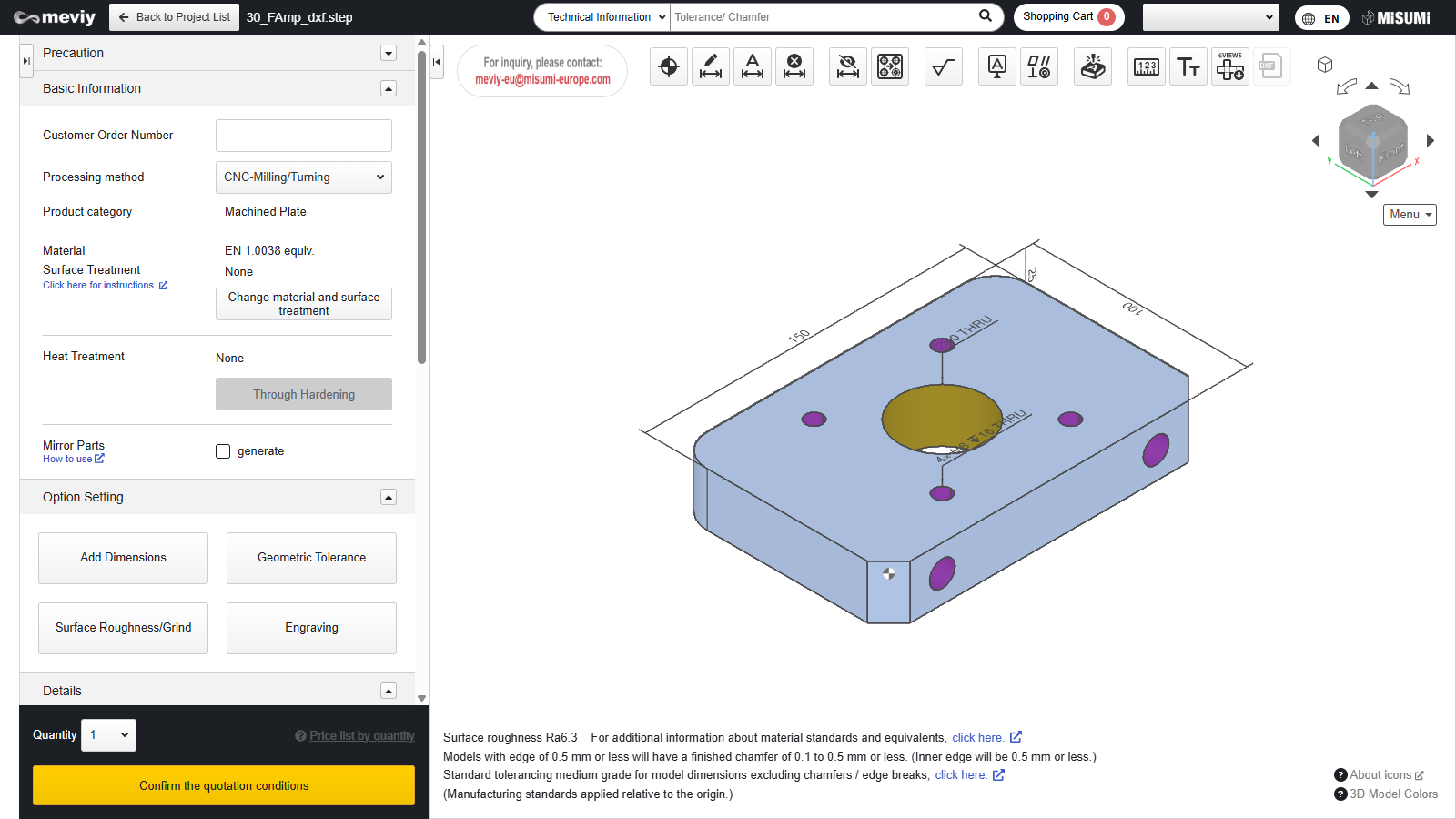
Download 2D DXF files

  • This function exports the shapes and dimensions displayed on the 3D Viewer to 2D DXF format.
  • *The generated .dxf version is AutoCAD 2018 DXF (*.dxf).
  • *The frame is MISUMI’s standard frame.
  • *File naming rule: The file name is attached by the Part Number.

Caution

Please note that the information contained within the DXF drawing frame is provided in English.

How to download 2D DXF files

STEP 1 Finalizing Quotation Conditions

  • To download the ‘2D DXF’ file, you must finalise the quotation conditions and confirm the part number.
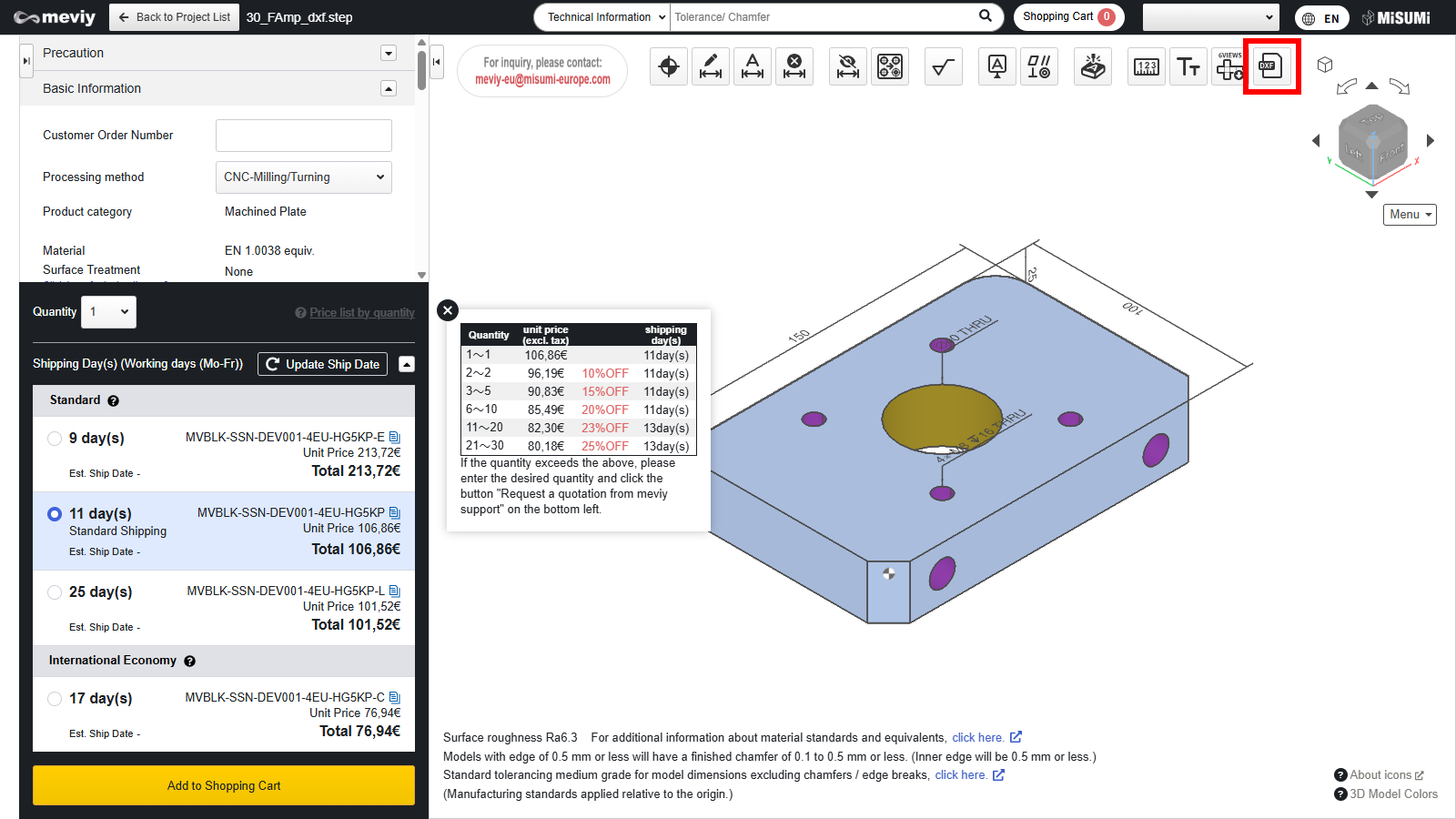
  • Once the Part Number is confirmed, the “2D DXF” icon will be activated and you can select it.

STEP 2 Select 2D DXF

  • Select from the icons at the top.
  • You can also select it with the shortcut keys (Shift + X).
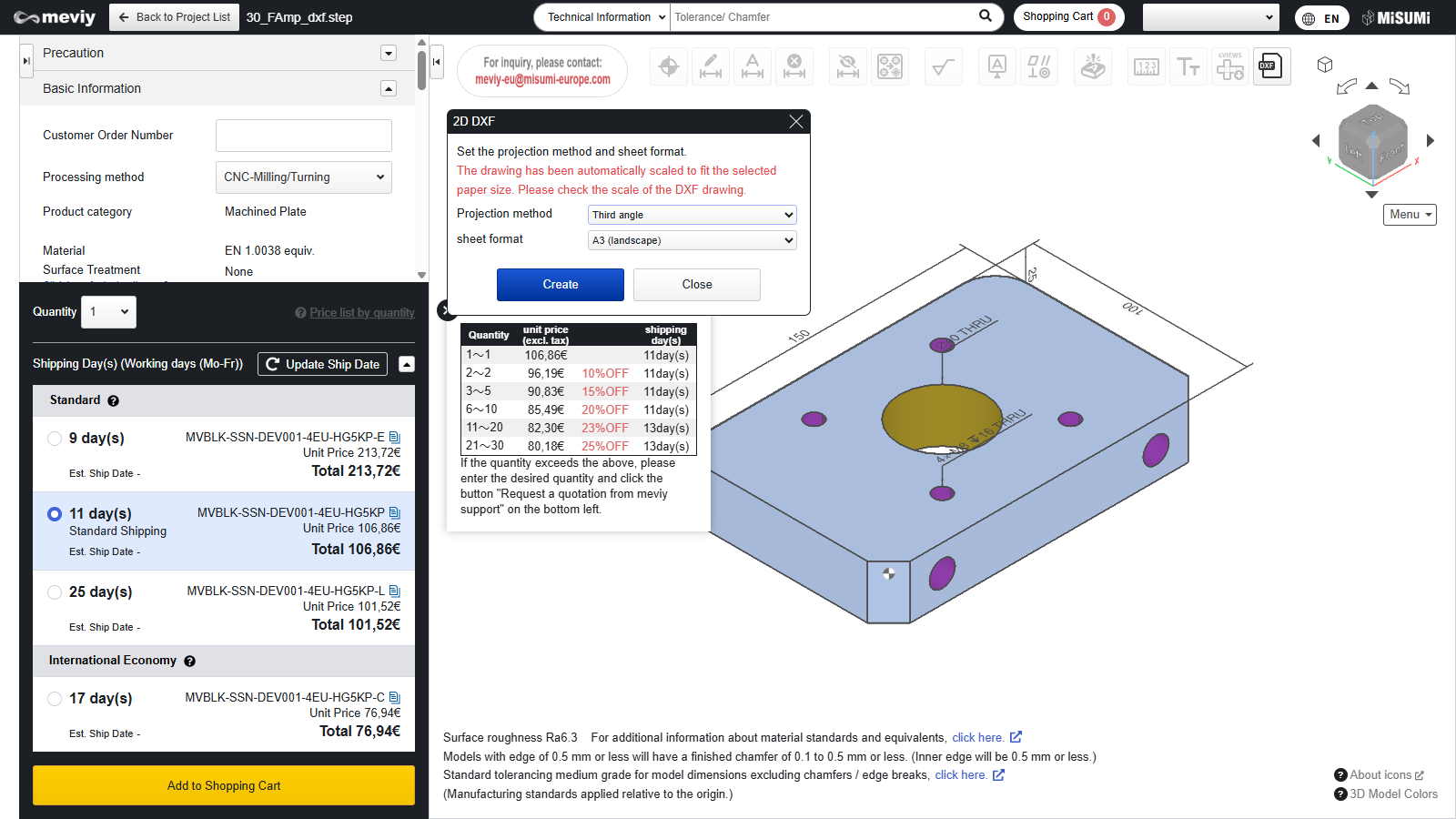
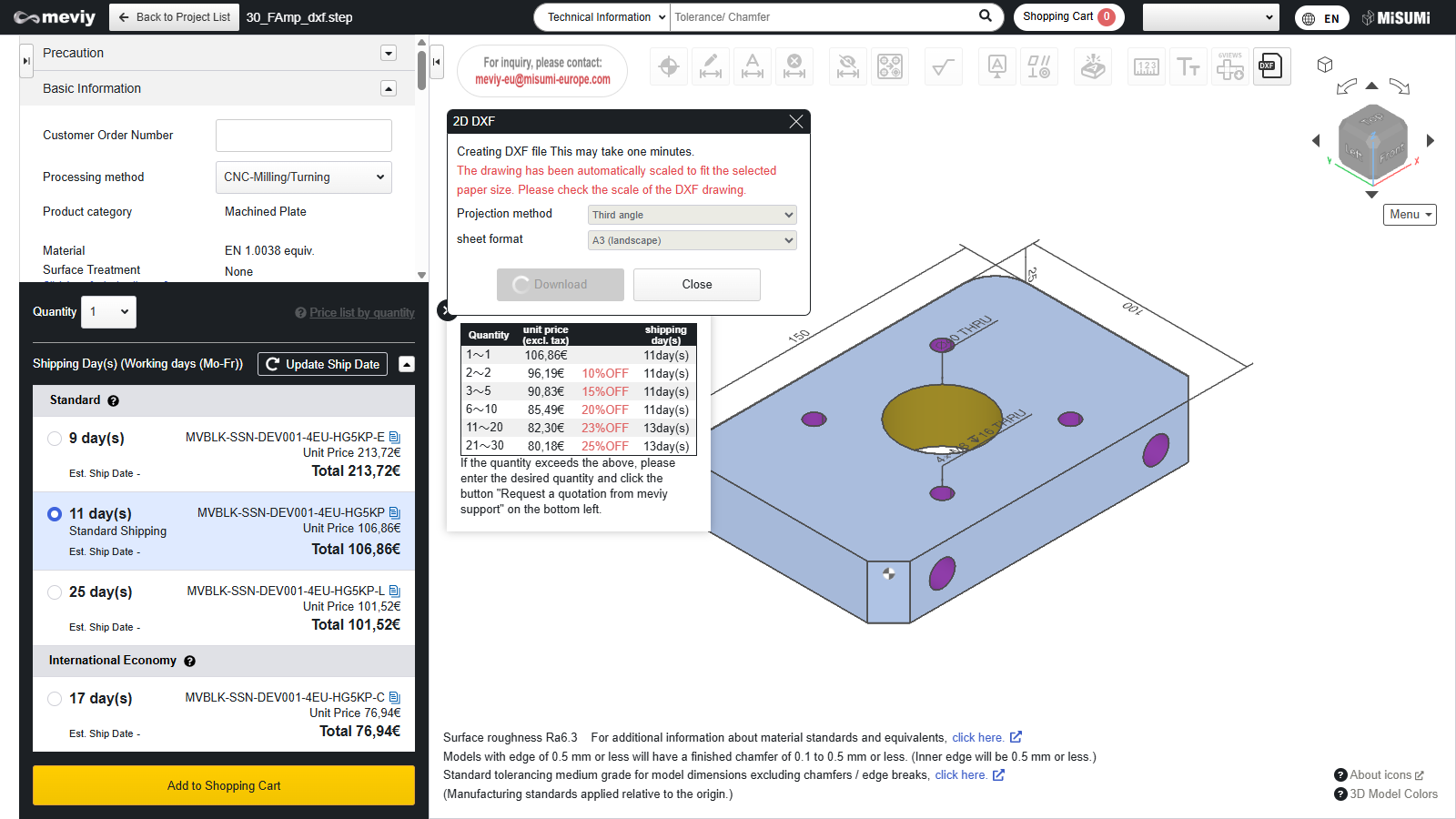
STEP 3 Selection of projection method and paper size

Select the projection method and paper size, and click the generate button.

STEP 4 Generating DXF file

  • Please wait a moment while generation is completed.
  • Even while generating, you can close the dialogue box and perform other operations.

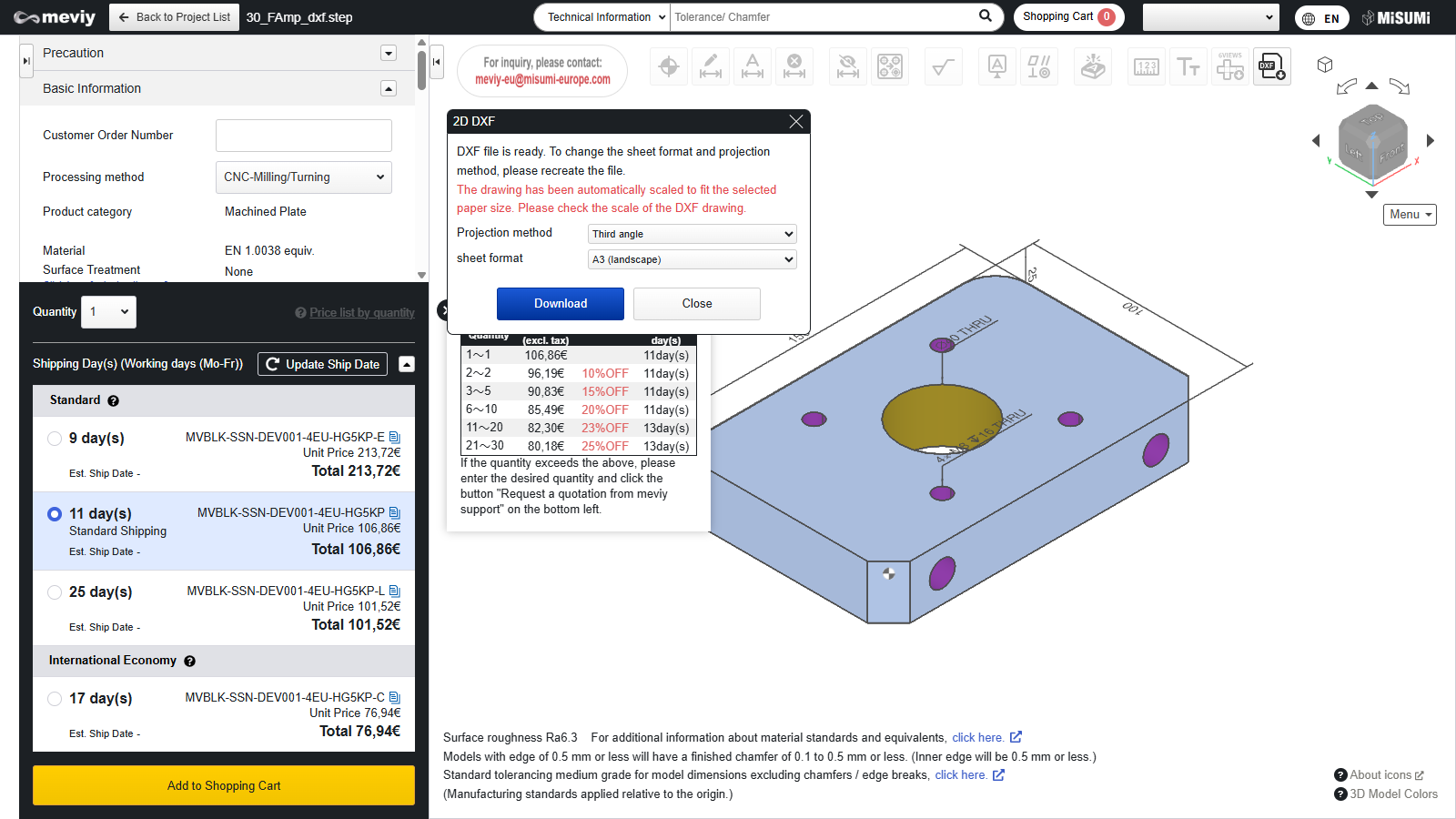
STEP 5 DXF file download

  • Once the DXF file is generated, it will be available for download.
  • If you change the projection method and paper size, you can regenerate it.

Caution

  • If you regenerate, it will return to the state of STEP 4 on this page.
  • The scale of this drawing will be automatically adjusted to fit the drawing frame of the paper size. Please check the scale within the drawing frame.
3D Viewer Models, Simplified 2D Diagrams 2D DXF
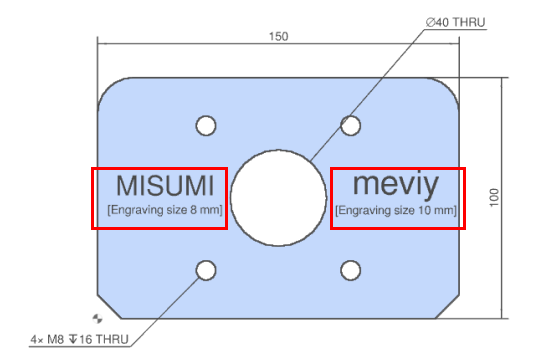
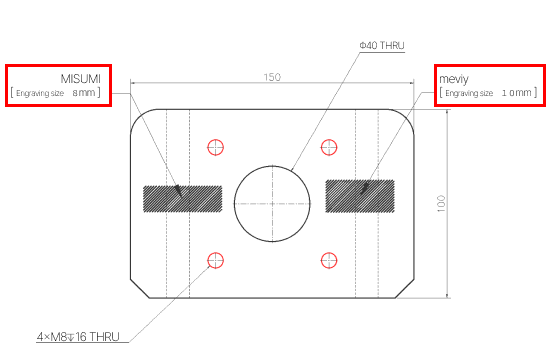
*About 2D DXF engraving expression
  • When outputting engravings in 2D DXF format, please be advised that the representation differs from that in the 3D Viewer model and simplified 2D drawings.
  • Set engraving

Recently viewed articles