iCAD
When using hole attribute linking, color attributes, and automatic recognition of threaded holes based on the hole diameter in iCAD, please note the following.
Hole Type Linkage / Automatic Recognition of hole/inner diameter type from CAD Hole Attributes
①The user settings are configured so that the hole and inner diameter type is automatically recognized based on the hole attribute.
②Use the following conditions and commands to upload data to meviy.
Condition:iCAD native files
Supported sizes, Version:Available design data formats
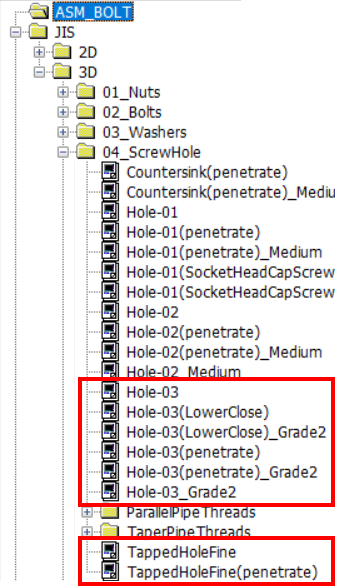
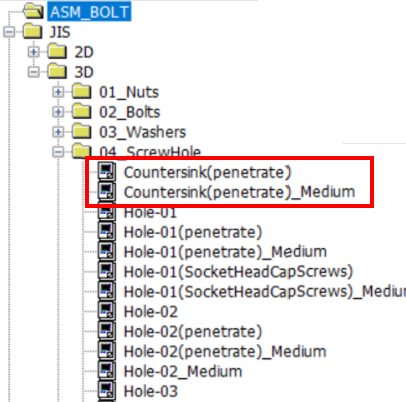
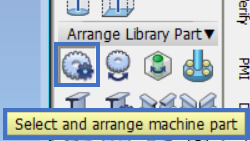
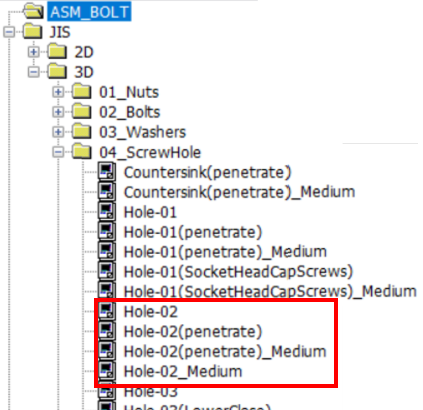
Linked hole commands
| Hole Type (meviy) | Conditions for Hole Command Setting | Description | important notice |
|---|
| Straight Hole・Through Hole | ![]() |
|
|
|---|---|---|---|
| Straight Hole
(Counterbored hole)
*Machined plates only |
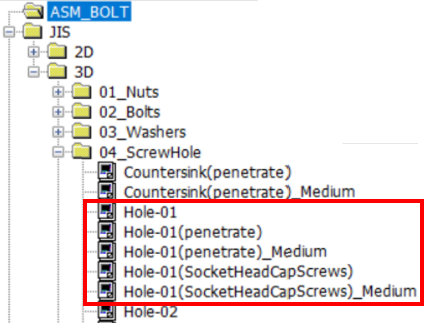
![]() |
|
|
| Precision Holes
*Machined plates only |
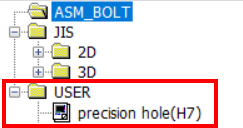
![]() |
・Select a hole created by user-defined. | To learn how to create a custom hole, please contact support. |
|
![]() |
|
|
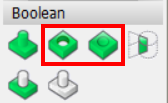
| Countersunk hole | ![]() |
|
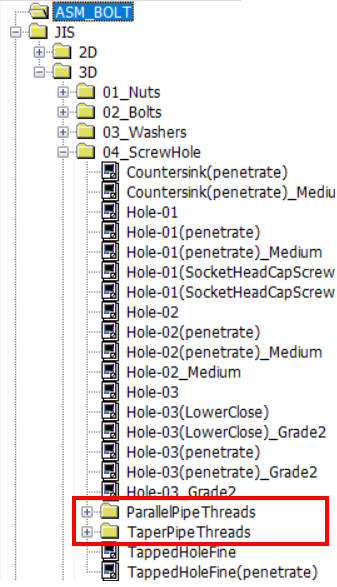
Hole commands that are not linked
| Hole Type (meviy) | Conditions for Hole Command Setting | Description | important notice |
|---|---|---|---|
| Non linkage hole① | ![]() |
|
|
| Non linkage hole② | ![]() |
![]() |
If it was created from holes according to (1) and (2), it will be displayed as “Hole command not used”. |
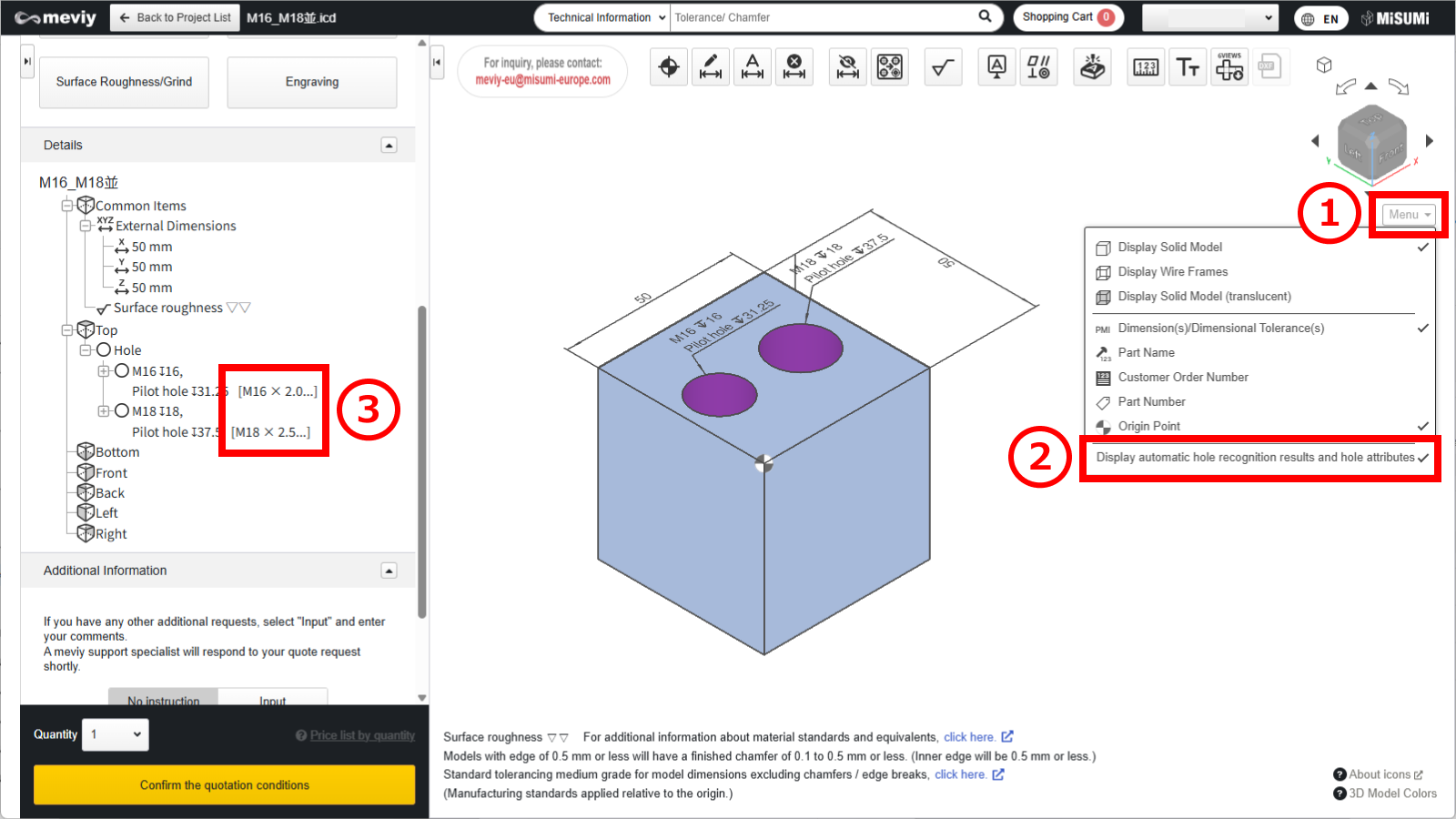
After uploading the data:
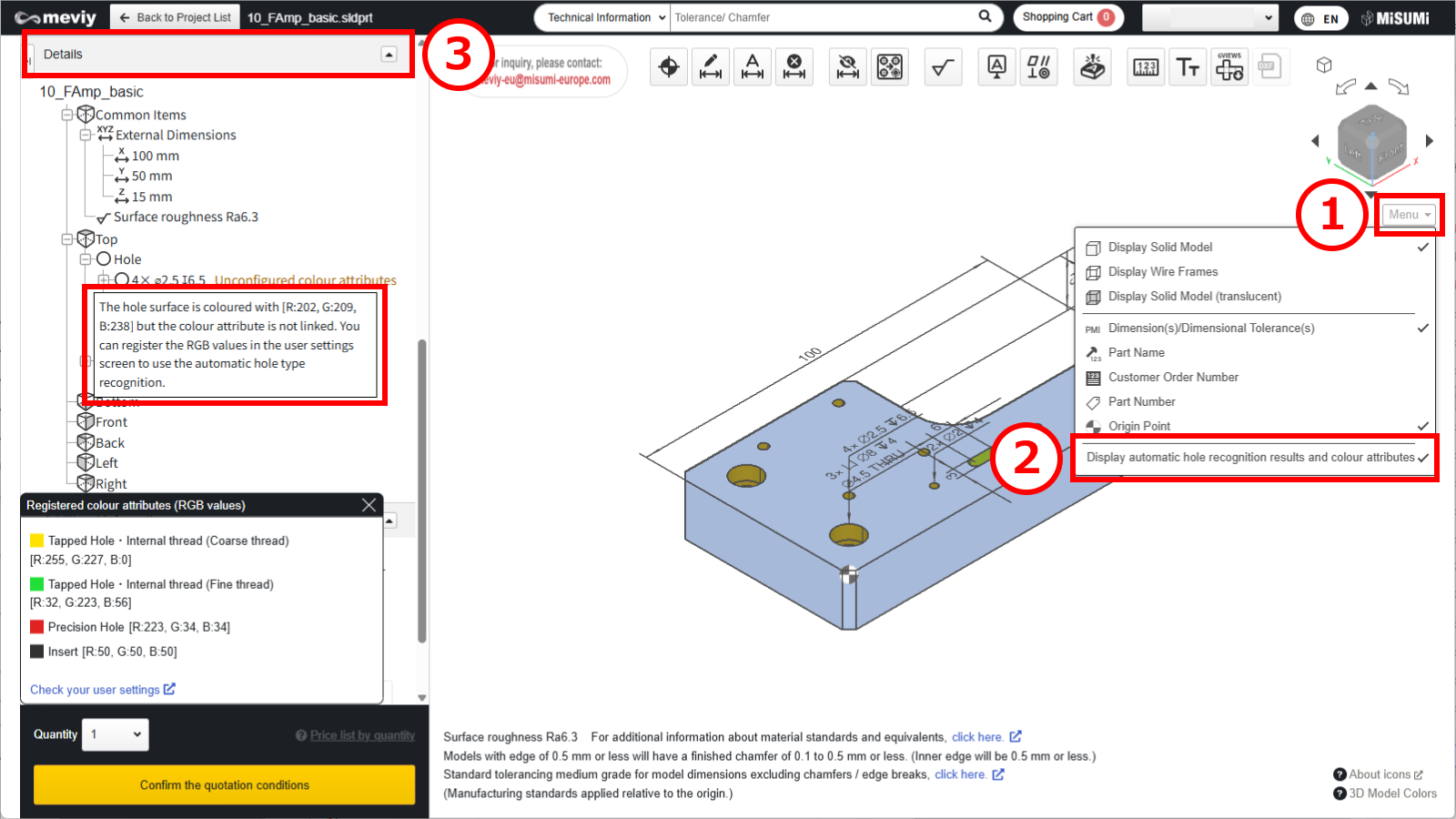
(1) Hover the mouse over [ Menu ] in the 3D viewer.
(2) Click [ Display automatic hole recognition results and hole attributes
].
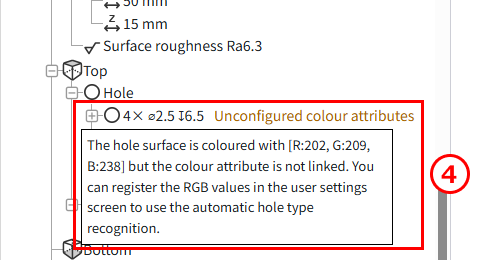
(3) The list of holes in the details displays information about the linked color attributes.
Caution
Restrictions apply to the types of holes and boreholes that can be linked from the ‘Hole’ attribute.Please refer to the following precautions and adjust the meviy settings as required.
-
The effective depth of each hole is independent and reflects the user’s settings.
Set the effective depth for each item using the following user settings. - Quotation Settings for Machined Plates Tapped Holes
- Quotation Settings for Turning Parts Tapped Holes
- Quotation Settings for Machined Plates Precision Holes
- Quotation Settings for Turning Parts Precision Holes
-
If a through hole with effective depth exists, the thread direction is automatically applied.After uploading, be sure to check the thread direction in meviy.
Notes
- See below for more information.
- → CNC Milling > Recognizing Different Types of Hole
- → CNC Turning > Specifications for External Thread and Internal Thread, Keyways, Holes and Pockets
- → Sheet Metal Parts > Tapped Hole Identification and Selectable Sizes
・3D CAD format for linking hole attributes
| CAD softwares | Native | Intermediate format(Parasolid) | ||
|---|---|---|---|---|
| (.icd) | .x_t | .x_b | .xmt_txt | |
| iCAD SX |
〇 |
– |
– |
– |
Caution
For models and CAD formats that are not supported by meviy, there is no guarantee of automatic hole/inner diameter type recognition.| Modeling methods | Cooperation | Description |
|---|---|---|
| Hole command in iCAD SX | 〇 | Since hole information is available, it can be linked correctly. |
| Customised hole commands | △ | Due to special settings, proper linkage may not be possible. |
| Holes created using extruded cuts or similar methods without the Hole command | – | Not supported because no hole attributes are defined. |
Color Attributes Linkage / Automatic Recognition of hole/inner diameter type from Color Attributes
①The user settings are configured so that the hole and inner diameter type is automatically recognized based on the color attribute.
②Color the side surface of the hole in the model.
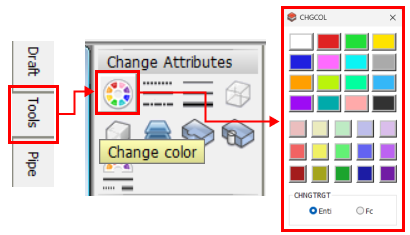
STEP1:
In the Tools tab, select “Change Attribute” → “Change Element Color”.
Display “Color Change”.
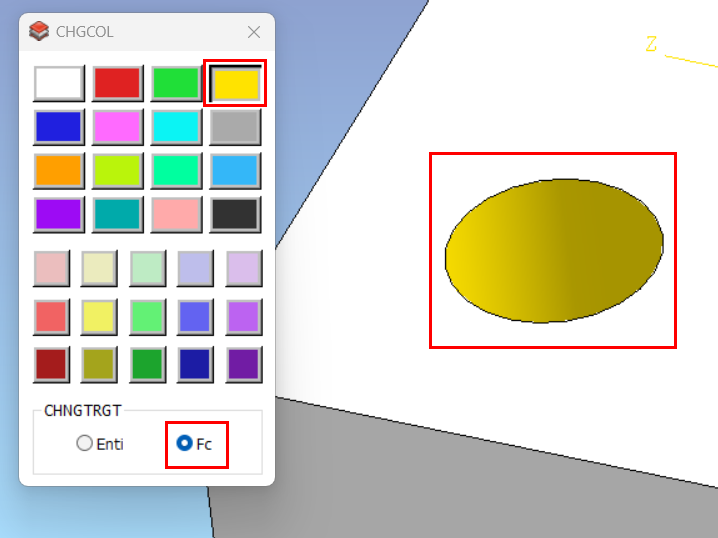
STEP2:
- In the Color Change command, under Change Target, select Face.
- Choose the color from the palette, then select the inner surface of the hole and the side surface of the model.
- Confirm by right-clicking.
③Upload the model to meviy after configuring it.
After uploading the data:
(1) Hover the mouse over [ Menu ] in the 3D viewer.
(2) Click [ Display automatic hole recognition results and colour attributes ].
(3) The list of holes in the details displays information about the linked color attributes.
(4) To recognize the hole and inner diameter type: select “Automatically recognize threaded holes based on hole diameter (without inner diameter)” from the drop-down menu.
Automatic Recognition of Tapped holes from Hole Diameter
①The user settings are configured so that threaded holes are automatically recognized based on the hole diameter.
②Use the hole command with the default settings to model the thread and upload it to meviy.
Recommended:Set the thread recognition method to “3D CAD Name” (see “Recognition Conditions for Various Holes“).
| Tap Size (Coarse) | iCAD SX |
|---|---|
| M2 | 2 |
| M2.5 | 2.5 |
| M3 | 3 |
| M4 | 4 |
| M5 | 5 |
| M6 | 6 |
| M8 | 8 |
| M10 | 10 |
| M12 | 12 |
| M14 | 14 |
| M16 | 16 |
| M18 | 15.5 |
| M20 | 17.5 |
| M22 | 19.5 |
| M24 | 21 |
Caution
When using this feature, please make sure to review the hole auto-recognition results in meviy.-
The effective depth of each tapped hole is not linked; user-defined settings are applied instead.
Set the effective depth for each item using the following user settings. - Quotation Settings for Machined Plates Tapped Holes
- Quotation Settings for Turning Parts Tapped Holes
-
If a through hole with effective depth exists, the thread direction is automatically applied.After uploading, be sure to check the thread direction in meviy.
Notes
- See below for more information.
- → CNC Milling > Recognizing Different Types of Hole
- → CNC Turning > Specifications for External Thread and Internal Thread, Keyways, Holes and Pockets
- → Sheet Metal Parts > Tapped Hole Identification and Selectable Sizes
After uploading the data:
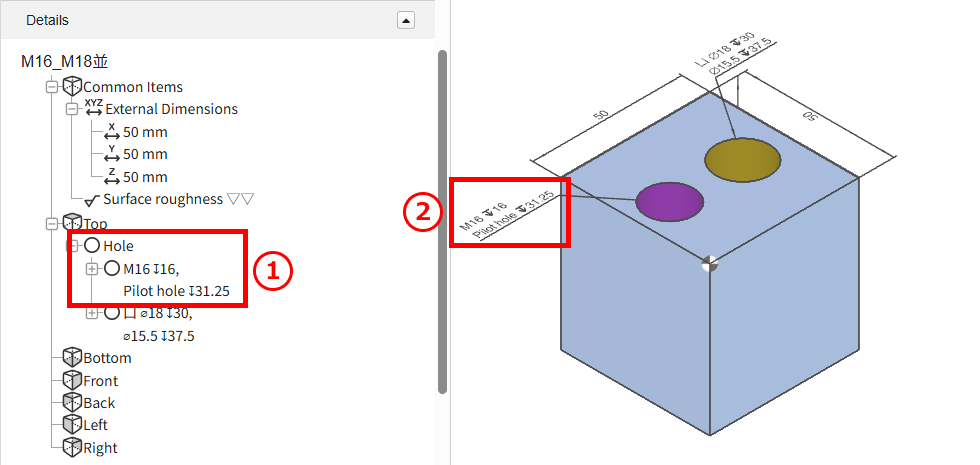
The linked threaded holes will be displayed.
- ①Hole list in the tree view
- ②In the 3D viewer
・3D CAD format for colour attributes
| CAD softwares | Native | Intermediate format(Parasolid) | ||
|---|---|---|---|---|
| (.icd) | .x_t | .x_b | .xmt_txt | |
| iCAD SX |
〇 |
〇 |
〇 |
– |
Caution
The automatic recognition of hole/inner diameter type from color attribute is not guaranteed for models created with non-compatible CAD systems or formats.