- HELP
- How to use
- Quotation conditions settings
- [CNC Milling] Quotation Settings
- Changing Hole Information
Changing Hole Information
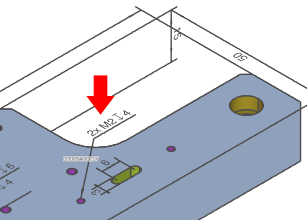
Selecting Holes to Modify
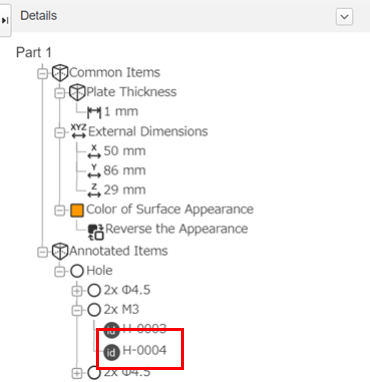
Double-click the hole you want to modify in the 3D Viewer or tree view.
3D Viewer
Tree view
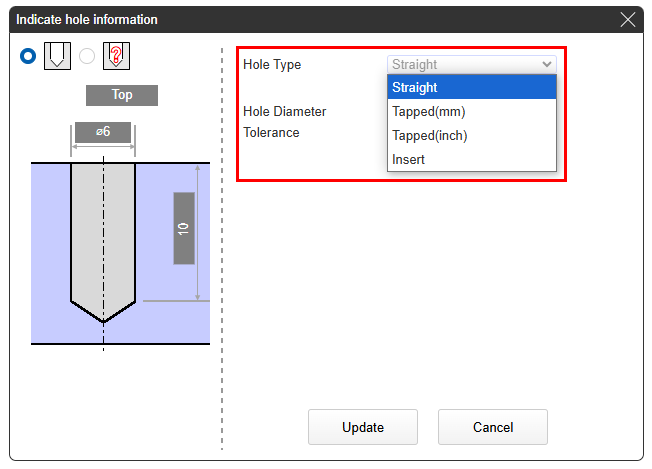
Selecting and Updating Hole Types
In the displayed [Hole information indication] dialog box, select the hole type and click [Update].
Caution
Be sure to check the hole type in the 3D viewer or tree view.
- Precision holes are not automatically recognized. Please be sure to specify them.
- Depending on your 3D CAD software, the recognition of hole types may vary.
- If both a tapped and straight hole type is possible, it will be recognized as a tapped hole.
Tip
- The accuracy of hole type recognition can be improved by configuring the [Automatic Recognition of hole type] settings in [User Settings]. → Quotation Procedure
- Hole type changes are applied to a whole group, so if you would like to specify a different hole type for each hole in the group, you first need to Splitting Group Holes.
- The precision of straight holes can be modified by changing the hole diameter tolerance type.
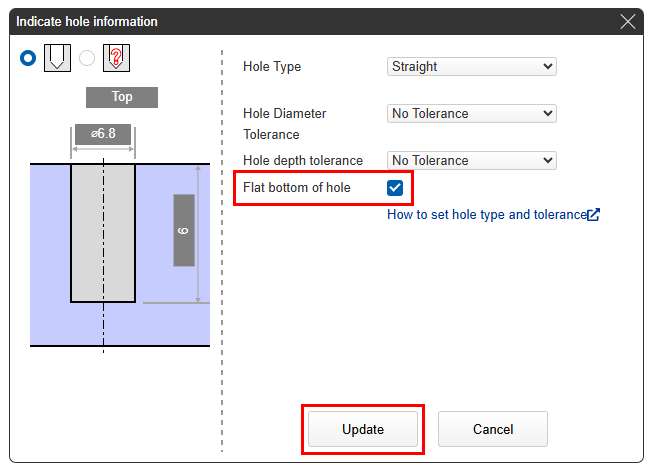
Specifying the shape of the bottom of the hole
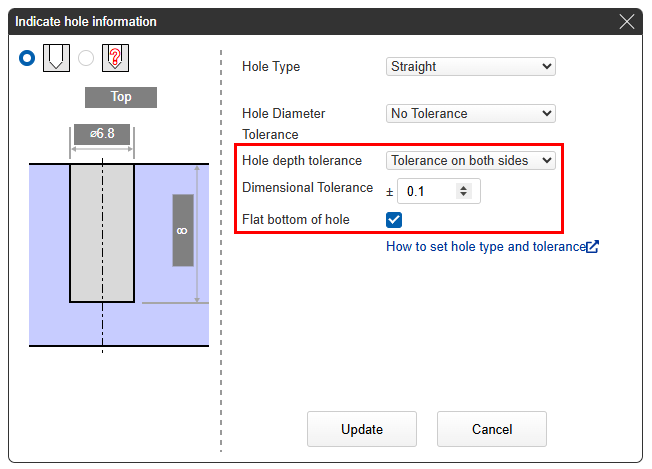
In the [Hole Information] dialog, click “Flat Bottom of Hole” and click [Update].
Caution
You can check the hole bottom shape in the hole information box, the hole specification on the 3D viewer, and in the tree view.- Specifying the hole bottom shape does not change the model on the 3D viewer.
- Tapped holes, insert holes, pilot holes, slotted holes, and countersunk holes cannot specify a hole bottom shape.
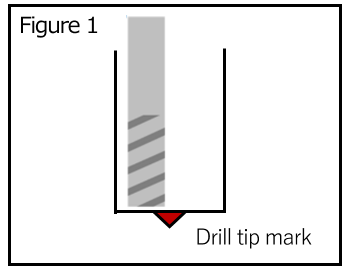
- If a hole of Φ5 or less is specified as flat bottom, a mark from the drill tip may remain due to processing constraints. (See Figure 1)
- If the shape of the hole bottom is not specified, the finished hole bottom may be conical due to processing restrictions even if the modeled hole bottom is flat and vice versa.
Tip
If you specify the bottom of a straight hole as flat, the hole depth tolerance can be set.
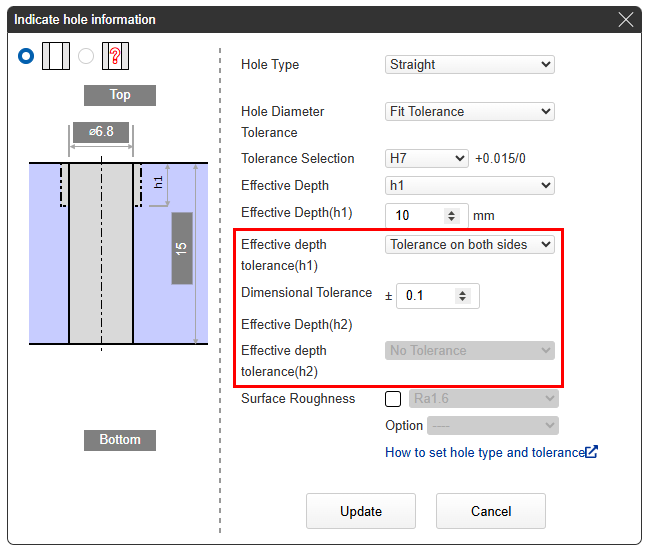
Specifying Hole Depth Tolerance or Effective Depth Tolerance
In the Hole Information dialog box, select a hole depth tolerance or an effective depth tolerance, and then click Update.
Caution
If a hole depth tolerance is set for a blind straight hole, the hole bottom shape is automatically specified as flat.