SOLIDWORKS

Please note the following when using hole attribute linking, color attributes, and automatic recognition of threaded holes based on hole diameter in SOLIDWORKS.

Hole Type Linkage / Automatic Recognition of hole/inner diameter type from CAD Hole Attributes

①The user settings are configured so that the hole and inner diameter type is automatically recognized based on the hole attribute.
②Use the following conditions and commands to upload data to meviy.
Condition:SOLIDWORKS Native Files
Supported sizes, Version:Available design data formats
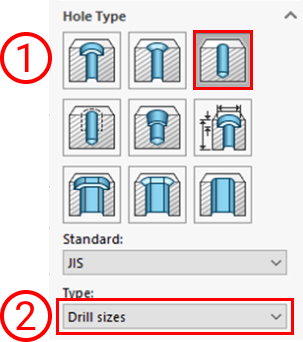
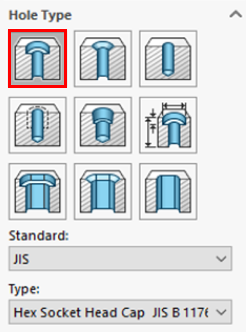
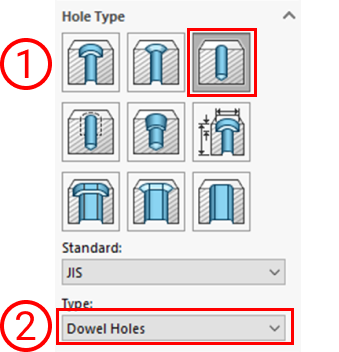
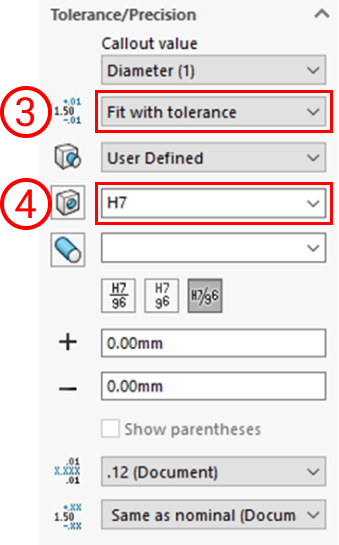
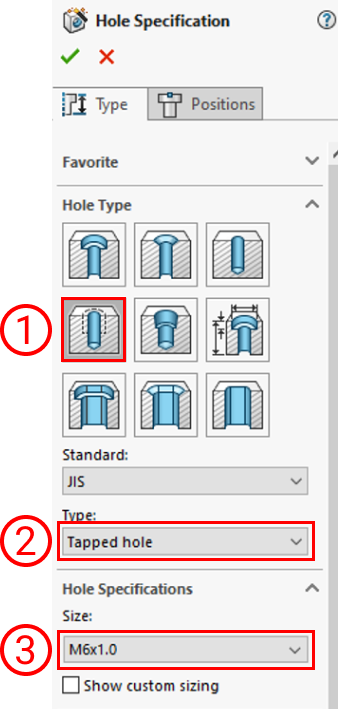
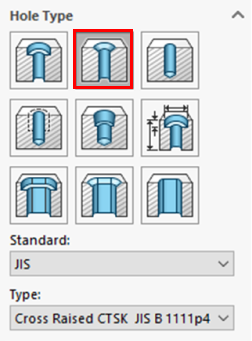
Linked hole commands
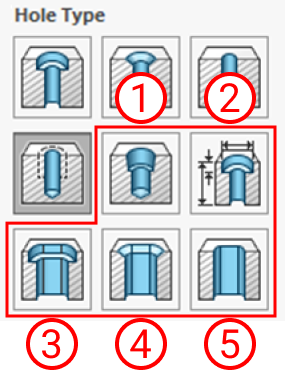
Hole commands that are not linked
Hole Type (meviy) Conditions for Hole Command Setting Description important notice
Non linkage hole①
  • The following are not eligible for linkage
  • 1) Tapered Tap
  • 2) Legacy Hole
  • 3) Counterbore Slot
  • 4) Countersink Slot
  • 5) Slot
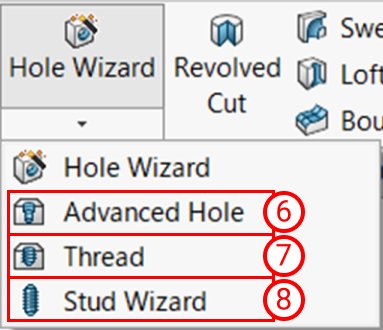
Non linkage hole②
  • The following are not eligible for linkage
  • 6) Advanced hole
  • 7) Thread
  • 8) Stud Wizard
  • *Holes not created using hole commands, such as those made with extrusions or revolved cuts, cannot be linked.
If it is made with these hole commands, the message “Hole command not used” will be displayed.
After uploading the data:
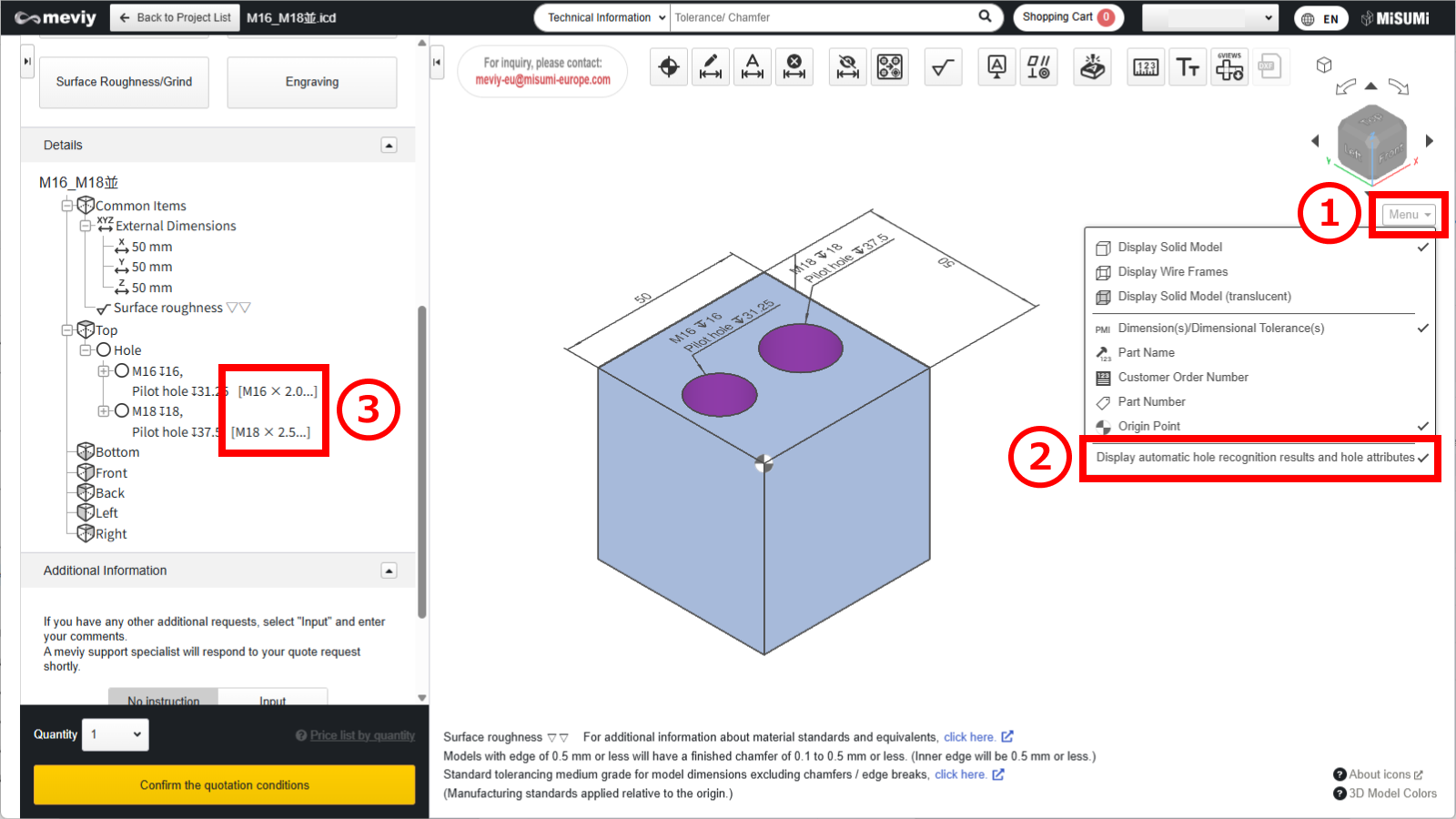
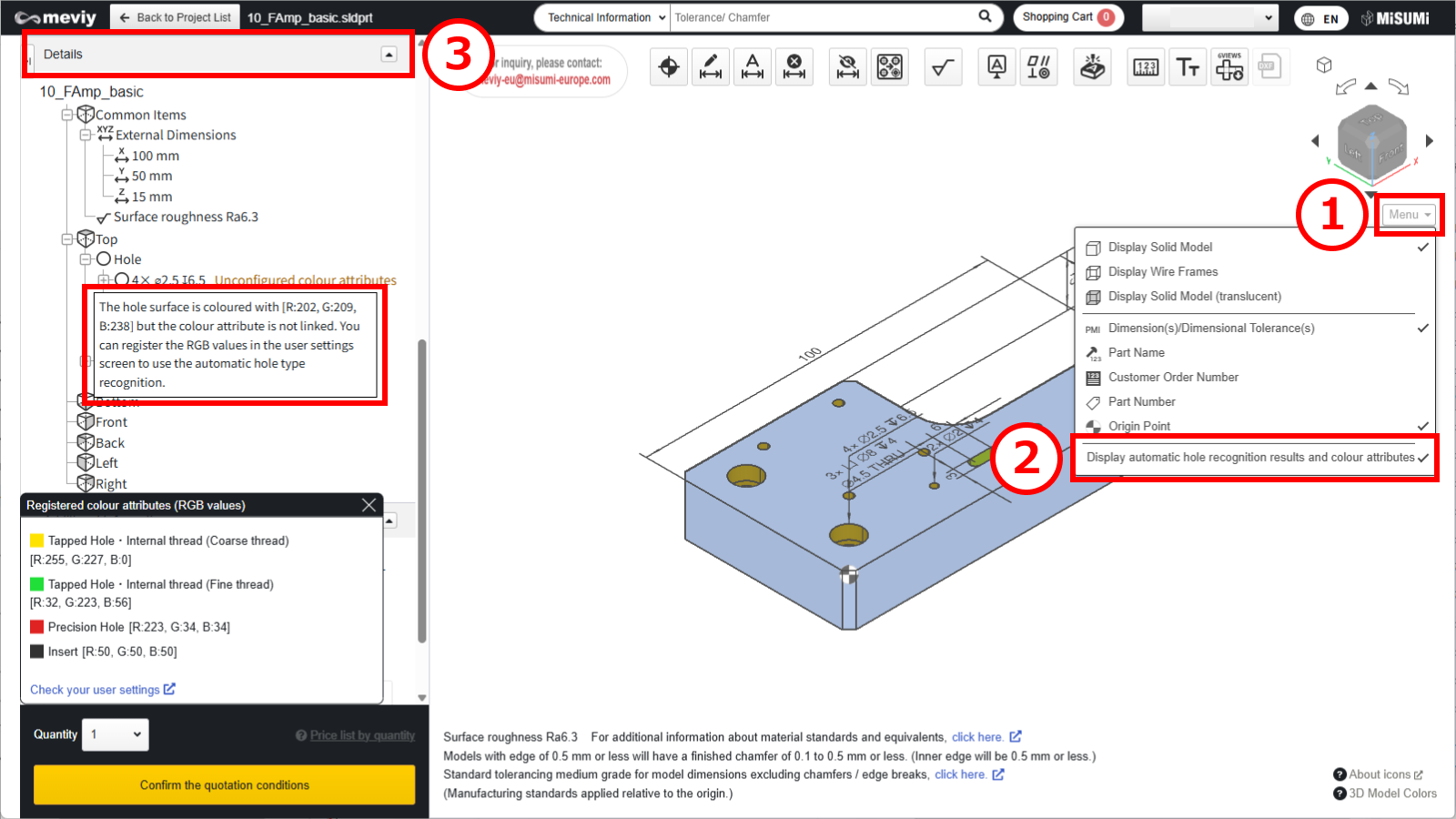
(1) Hover the mouse over [ Menu ] in the 3D viewer.
(2) Click [ Display automatic hole recognition results and hole attributes ].
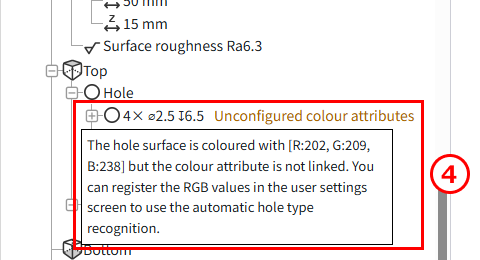
(3) The list of holes in the details displays information about the linked color attributes.

Caution

Restrictions apply to the types of holes and boreholes that can be linked from the ‘Hole’ attribute.
Please refer to the following precautions and adjust the meviy settings as required.
  • If a through hole with effective depth exists, the thread direction is automatically applied.
    After uploading, be sure to check the thread direction in meviy.
・3D CAD format for linking hole attributes
CAD softwares Native Intermediate format(Parasolid)
(.sldprt)(.icd) .x_t .x_b .xmt_txt
SOLIDWORKS

Caution

For models and CAD formats that are not supported by meviy, there is no guarantee of automatic hole/inner diameter type recognition.
Modeling methods Cooperation Description
SOLIDWORKS Hole command Since hole information is available, it can be linked correctly.
Customised hole commands Due to special settings, proper linkage may not be possible.
Holes created using extruded cuts or similar methods without the Hole command Not supported because no hole attributes are defined.

Color Attributes Linkage / Automatic Recognition of hole/inner diameter type from Color Attributes

①The user settings are configured so that the hole and inner diameter type is automatically recognized based on the color attribute.
②Color the side surface of the hole in the model.
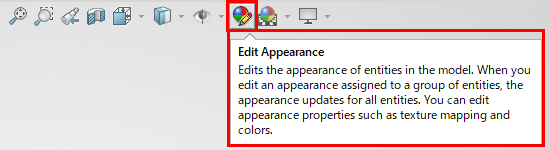
STEP1:
Select “Edit Appearance”.
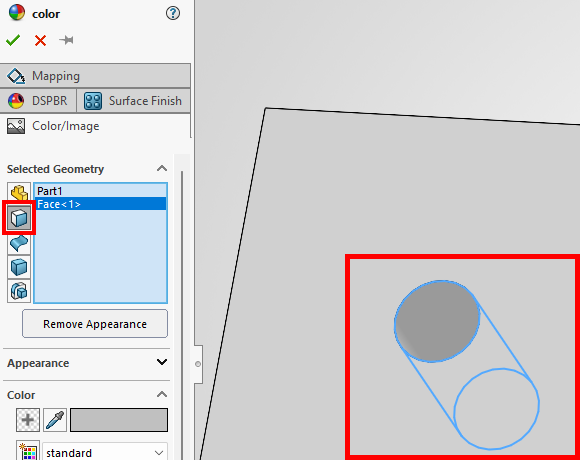
STEP2:

Selection geometry: Face selection

Select the inner surface and the side surface of the hole in the model.

・Meviy user settings:
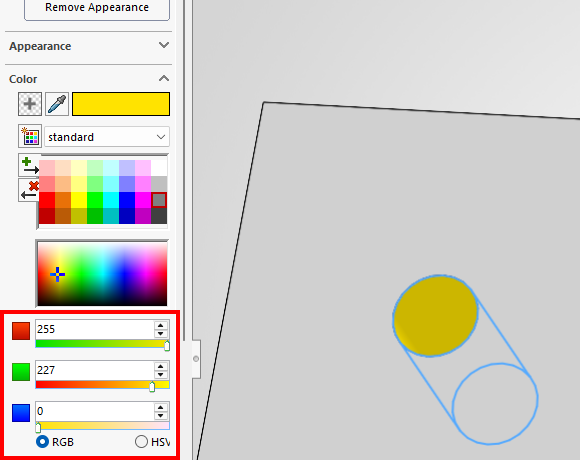
STEP3:
RGB values defined in meviy, RGB coloring in SOLIDWORKS
・SOLIDWORKS RGB settings screen
③Upload the model to meviy after configuring it.
After uploading the data:
(1) Hover the mouse over [ Menu ] in the 3D viewer.
(2) Click [ Display automatic hole recognition results and colour attributes ].
(3) The list of holes in the details displays information about the linked color attributes.
(4) To recognize the hole and inner diameter type: select “Automatically recognize threaded holes based on hole diameter (without inner diameter)” from the drop-down menu.
・3D CAD format for colour attributes
CAD softwares Native Intermediate format(Parasolid)
(.sldprt) .x_t .x_b .xmt_txt
SOLIDWORKS

Caution

The automatic recognition of hole/inner diameter type from color attribute is not guaranteed for models created with non-compatible CAD systems or formats.

Automatic Recognition of Tapped holes from Hole Diameter

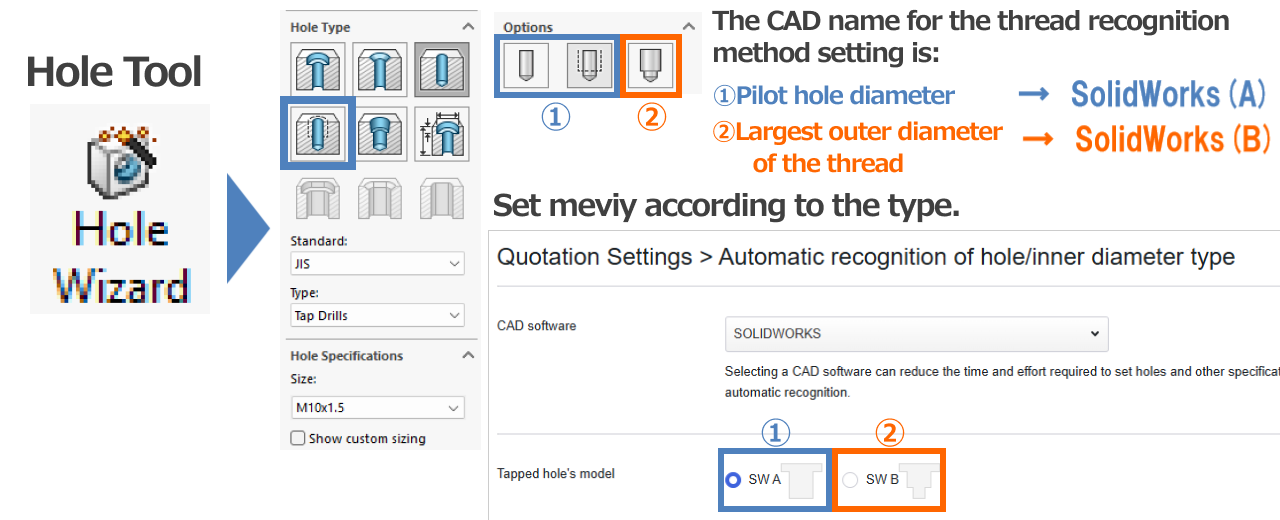
①The user settings are configured so that threaded holes are automatically recognized based on the hole diameter.
②In the user settings, select SOLIDWORKS(A) or SOLIDWORKS(B).
  • SOLIDWORKS(A):Modeling based on the pilot hole diameter
  • SOLIDWORKS(B):Thread modeling
③Use the hole command with the default settings to model the thread and upload it to meviy.
Recommended:Set the thread recognition method to “3D CAD Name” (see “Recognition Conditions for Various Holes“).
Tap Size
(Coarse)
SOLIDWORKS(A)SOLIDWORKS(B)
M21.62
M2.52.052.5
M32.53
M43.34
M54.25
M656
M86.88
M108.510
M1210.212
M141214
M161416
M1815.515.5
M2017.517.5
M2219.519.5
M242121

Caution

When using this feature, please make sure to review the hole auto-recognition results in meviy.
  • If a through hole with effective depth exists, the thread direction is automatically applied.
    After uploading, be sure to check the thread direction in meviy.
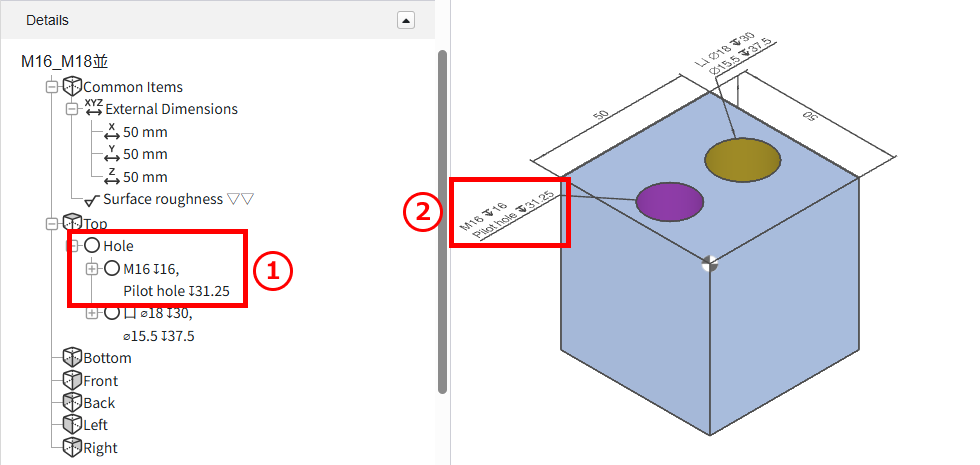
After uploading the data:
The linked threaded holes will be displayed.
  • ①Hole list in the tree view
  • ②In the 3D viewer

Recently viewed articles