CATIA
When using hole attribute linkage, colour attribute linkage, and automatic recognition of tapped holes from hole diameters in CATIA, please refer to the following instructions.
Color Attributes Linkage / Automatic Recognition of hole/inner diameter type from Color Attributes
①The user settings are configured so that the hole and inner diameter type is automatically recognized based on the color attribute.
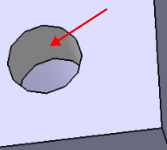
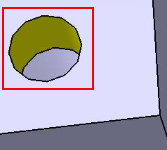
②Color the side surface of the hole in the model.
STEP1:
- Selection geometry: Face selection
- Select the inner surface and the side surface of the hole in the model.
STEP2:
Right-click on the element you want to change, then select [Properties] from the displayed menu.
STEP3:
- [Graphic] tab
- → [Fill] item
- → [Colour] item
- → [More Colours] item
- → [Define Custom Colours] item
- → Set Red, Green and Blue [RGB]
STEP4:
Click the [OK] button to close the Properties screen. The colour is displayed.
③Upload the model to meviy after configuring it.
After uploading the data:
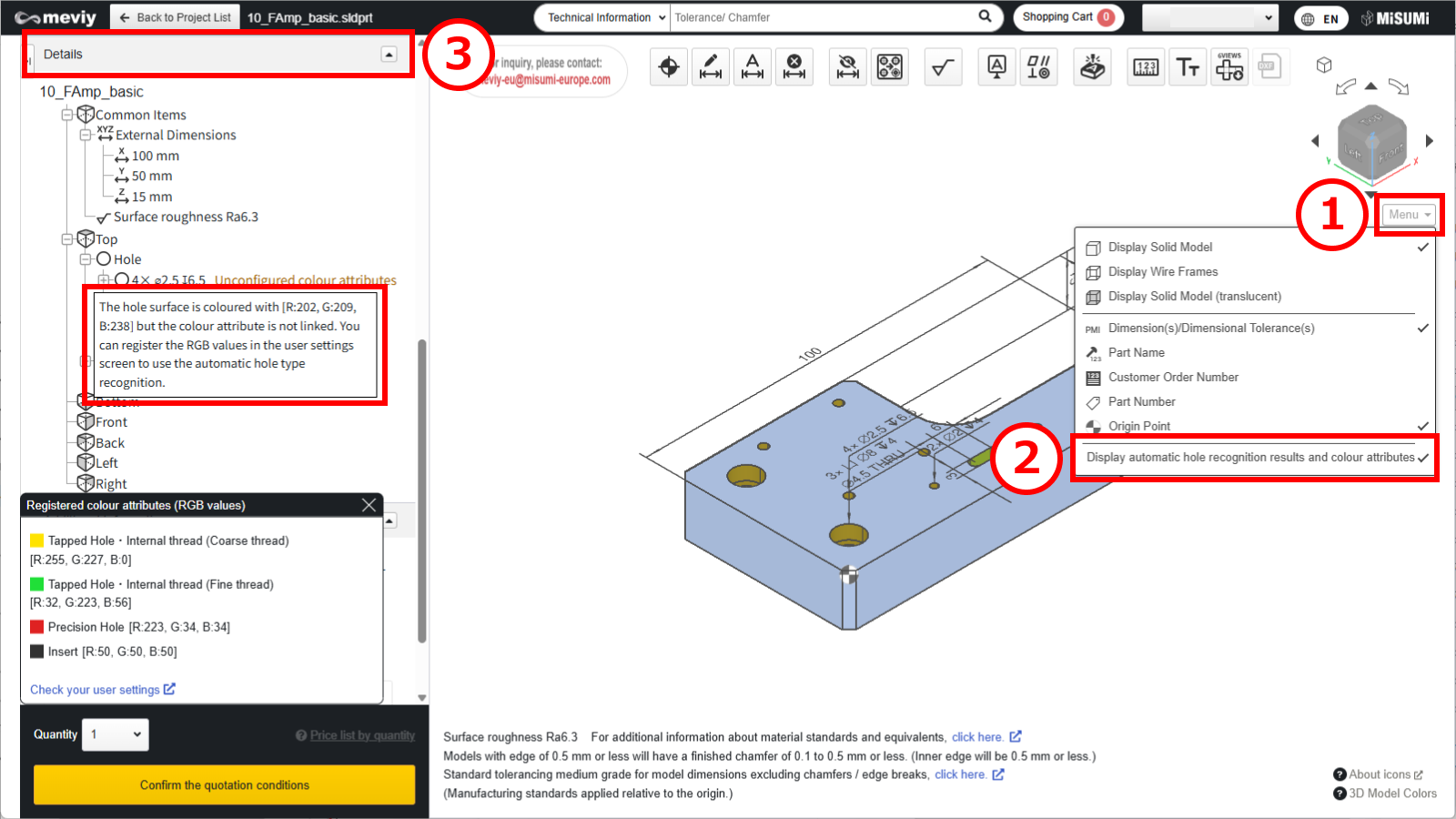
(1) Hover the mouse over [ Menu ] in the 3D viewer.
(2) Click [ Display automatic hole recognition results and colour attributes ].
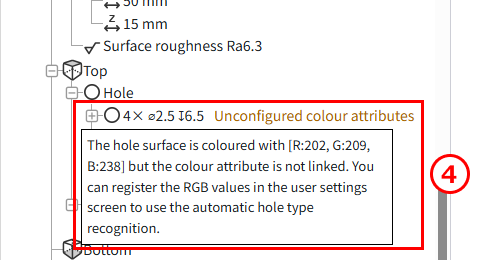
(3) The list of holes in the details displays information about the linked color attributes.
(4) To recognize the hole and inner diameter type: select “Automatically recognize threaded holes based on hole diameter (without inner diameter)” from the drop-down menu.
Automatic Recognition of Tapped holes from Hole Diameter
①The user settings are configured so that threaded holes are automatically recognized based on the hole diameter.
②Use the hole command with the default settings to model the thread and upload it to meviy.
Recommended:Set the thread recognition method to “3D CAD Name” (see “Recognition Conditions for Various Holes“).
| Tap Size (Coarse) | CATIA V5 |
|---|---|
| M2 | 1.57 |
| M2.5 | 2.01 |
| M3 | 2.46 |
| M4 | 3.24 |
| M5 | 4.13 |
| M6 | 4.92 |
| M8 | 6.65 |
| M10 | 8.38 |
| M12 | 10.11 |
| M14 | 11.84 |
| M16 | 13.84 |
| M18 | 15.29 |
| M20 | 17.29 |
| M22 | 19.29 |
| M24 | 20.75 |
Caution
When using this feature, please make sure to review the hole auto-recognition results in meviy.-
The effective depth of each tapped hole is not linked; user-defined settings are applied instead.
Set the effective depth for each item using the following user settings. - Quotation Settings for Machined Plates Tapped Holes
- Quotation Settings for Turning Parts Tapped Holes
-
If a through hole with effective depth exists, the thread direction is automatically applied.After uploading, be sure to check the thread direction in meviy.
Notes
- See below for more information.
- → CNC Milling > Recognizing Different Types of Hole
- → CNC Turning > Specifications for External Thread and Internal Thread, Keyways, Holes and Pockets
- → Sheet Metal Parts > Tapped Hole Identification and Selectable Sizes
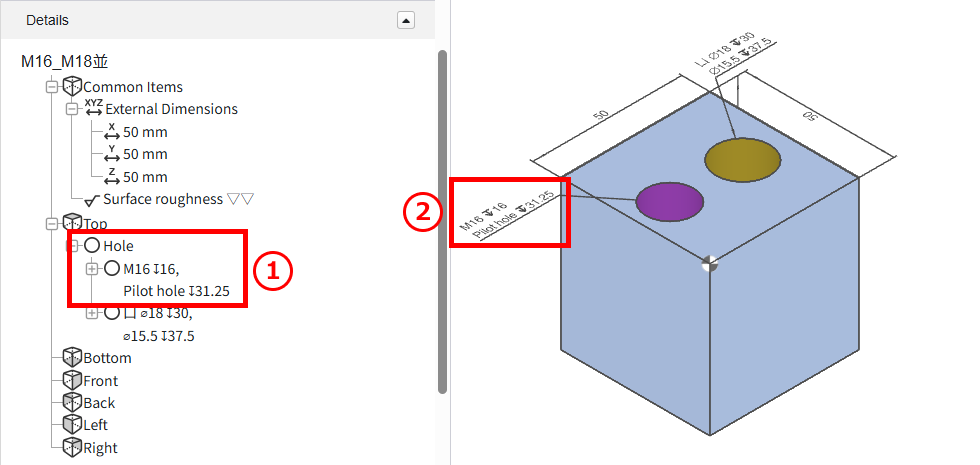
After uploading the data:
The linked threaded holes will be displayed.
- ①Hole list in the tree view
- ②In the 3D viewer
・3D CAD format for colour attributes
| CAD softwares | Native | Intermediate format(Parasolid) | ||
|---|---|---|---|---|
| (.CATPart) | .x_t | .x_b | .xmt_txt | |
| CATIA |
〇 |
– |
– |
– |
Caution
The automatic recognition of hole/inner diameter type from color attribute is not guaranteed for models created with non-compatible CAD systems or formats.