- HELP
- How to use
- Quotation conditions settings
- [Welded Sheet Metal] Quotation Settings
- Adding/Removing Dimensions
Adding/Removing Dimensions
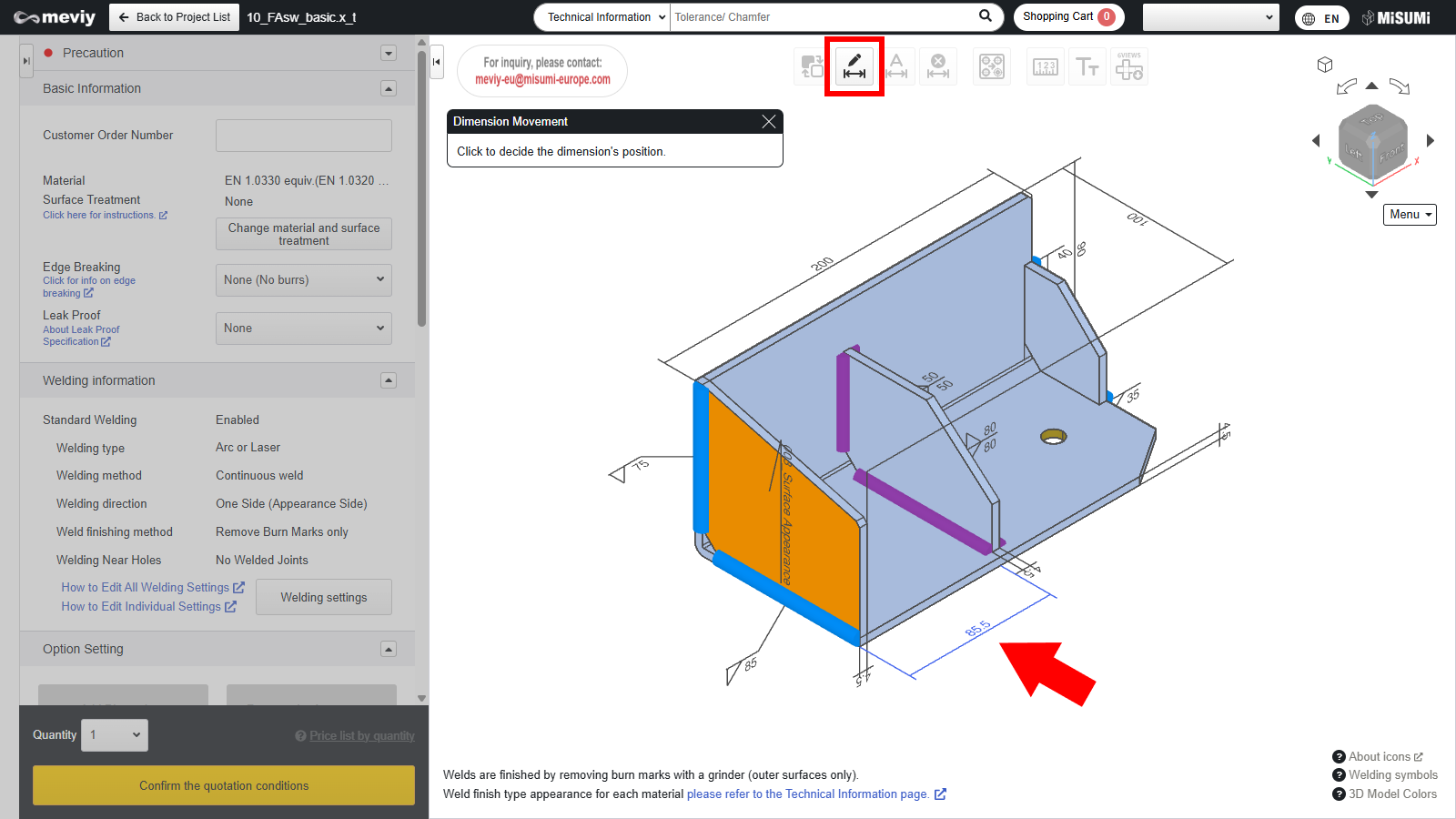
- Click
 and then click 2 points (center of a hole or a face) to which you want to add dimensions.
 - Click where you want the dimensions to be displayed. Finalize the position where the dimensions will be displayed.
Tip
- By selecting
 and clicking [OK] in the displayed dialog box, you can batch‑add dimension lines to areas where dimensions were not initially shown.
 - Dimensions that span across multiple parts cannot be added.
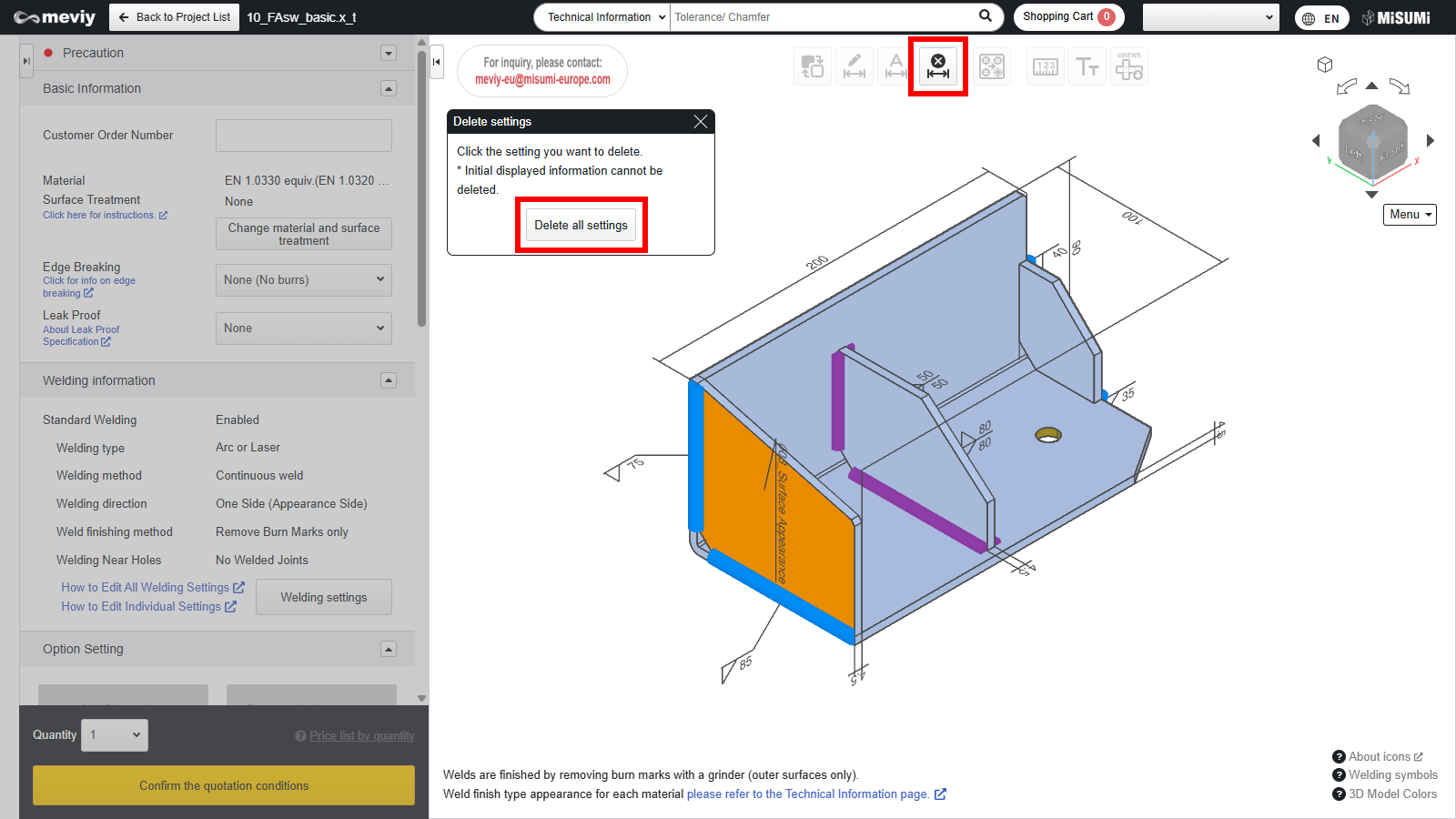
Click  and then click the dimension you want to delete.
and then click the dimension you want to delete.